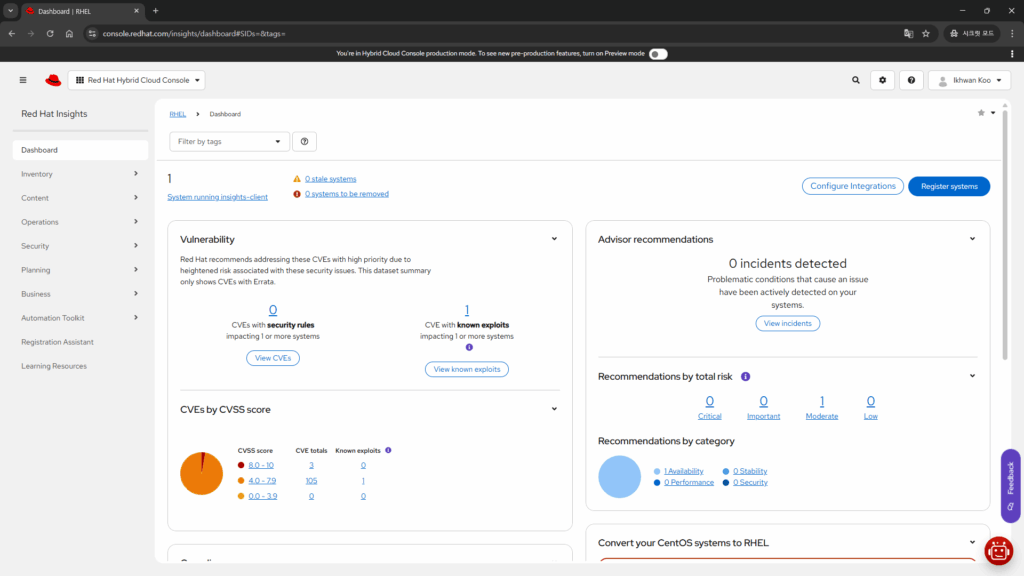
“RH124: Red Hat System Administration I” RHEL 10.0 과정 기준으로 “Chapter 4. Registering Systems for Red Hat Support”에서 RHEL 구독 등록, 관리, rhc 명령어 사용법 등과 관련된 내용을 다룹니다. 다만 Lab도 없다 보니 실제 어떻게 사용되는지 파악하기에 조금 부족한 느낌입니다.
그래서 1) RH124 교육 내용을 좀 보강하고, 2) Red Hat Developer 구독을 갖고 있는 경우의 안내자료 용도로 좀 정리해 봤습니다.
설치할 때 구독에 연결하는 방법
RHEL을 설치를 진행할 때 구독에 바로 연결하는 방법에 대해서 알아보도록 하겠습니다.
(1) 설치 요약화면에서 “Red Hat에 연결”을 클릭합니다.
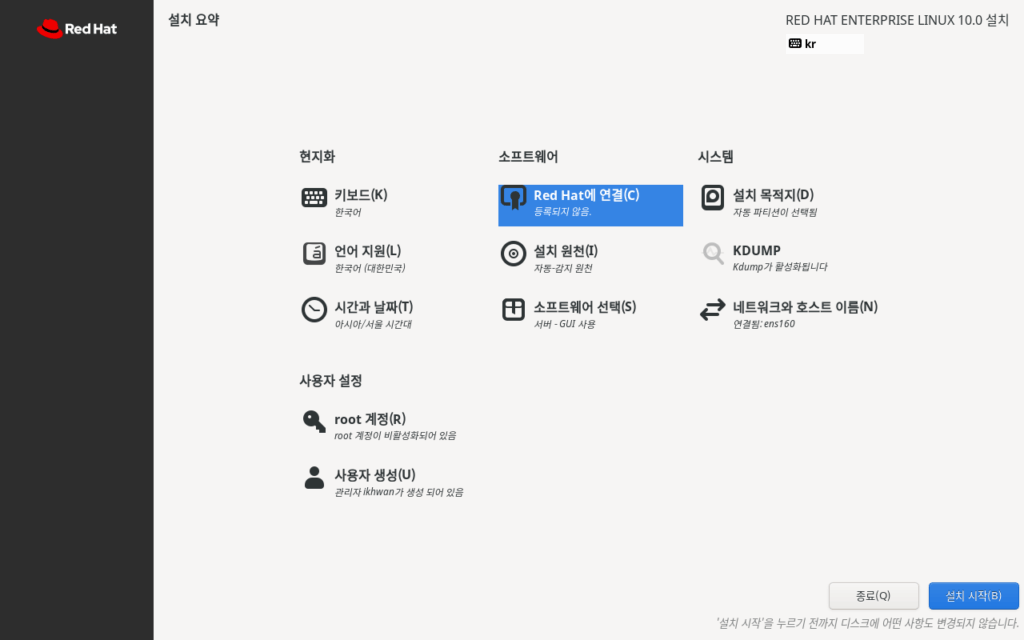
(2) 연결할 때 인증 방식으로 Red Hat ID와 암호를 입력하는 “계정” 방식과 키와 조직 ID를 입력하는 “활성키” 방식 둘 중에 하나를 선택할 수 있습니다.
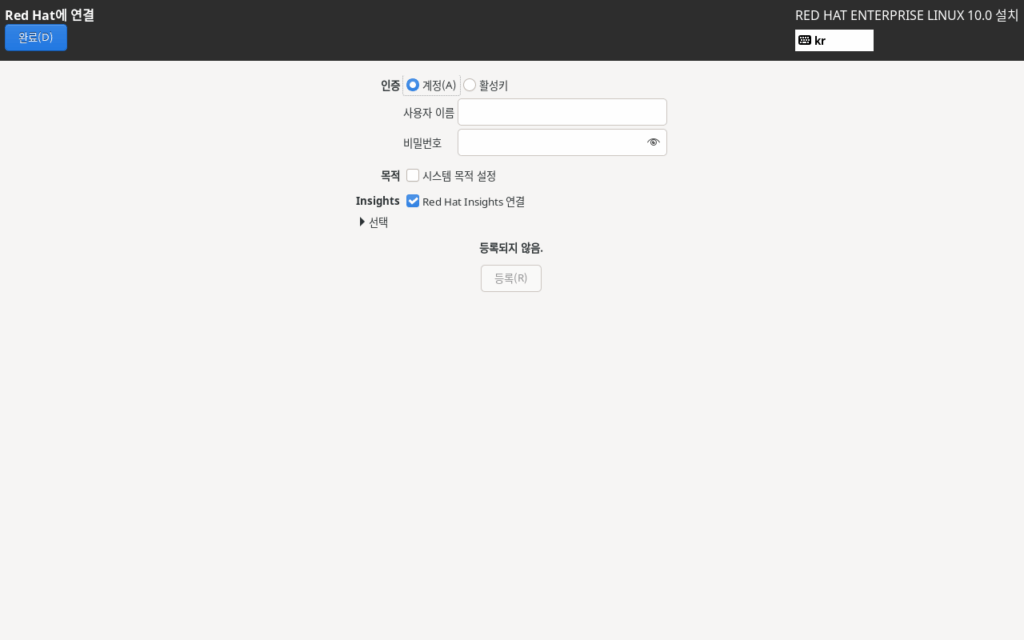
(3) “활성키” 방식을 선택하면 그림 처럼 입력 항목이 “조직 ID”와 “활성키”로 변경됩니다. 이 방식으로 사용하는거 추천합니다.
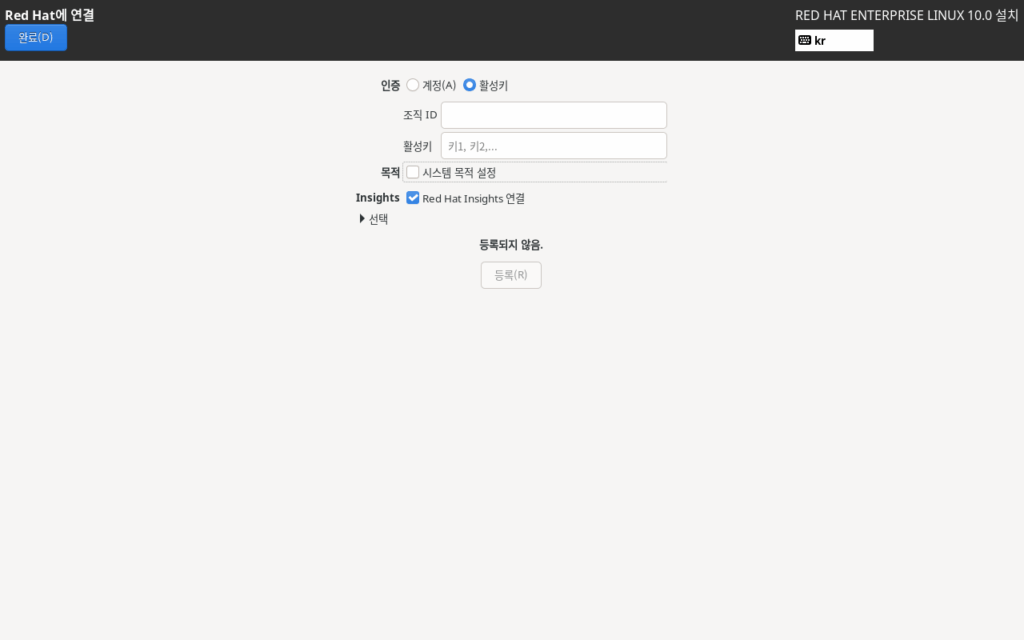
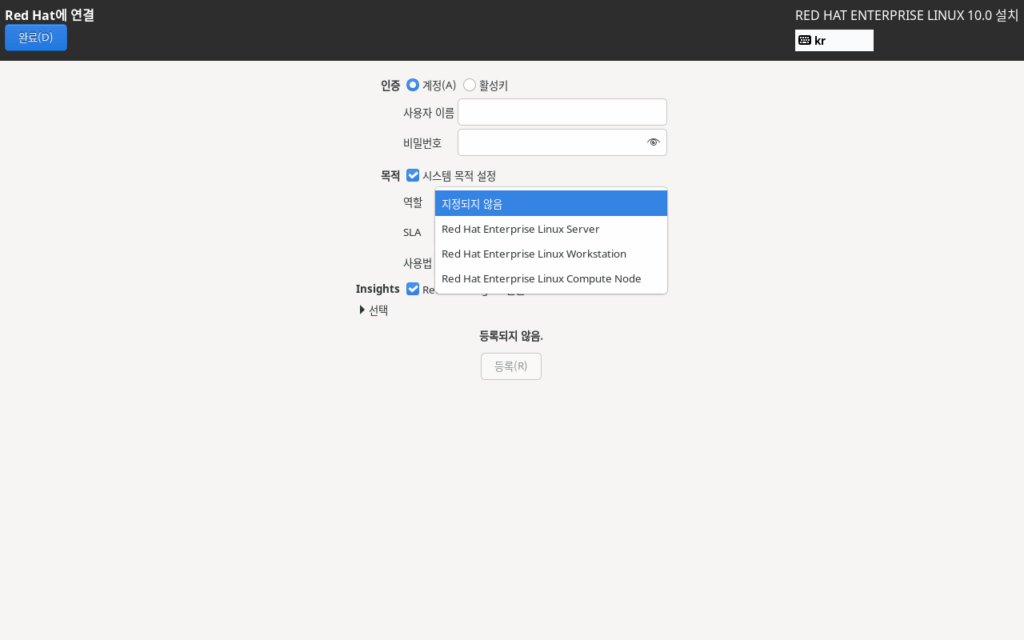
(4) 목적 옆의 “시스템 목적 설정”을 선택하면 “역할”, “SLA”, “사용법” 등 3가지 항목이 추가됩니다. 지정하지 않아도 설치에 관계 없습니다.
(5) “역할”은 그림 처럼 3가지가 표시됩니다. 개발자 구독의 경우는 “Red Hat Enterprise Linux Workstation”을 선택합니다.
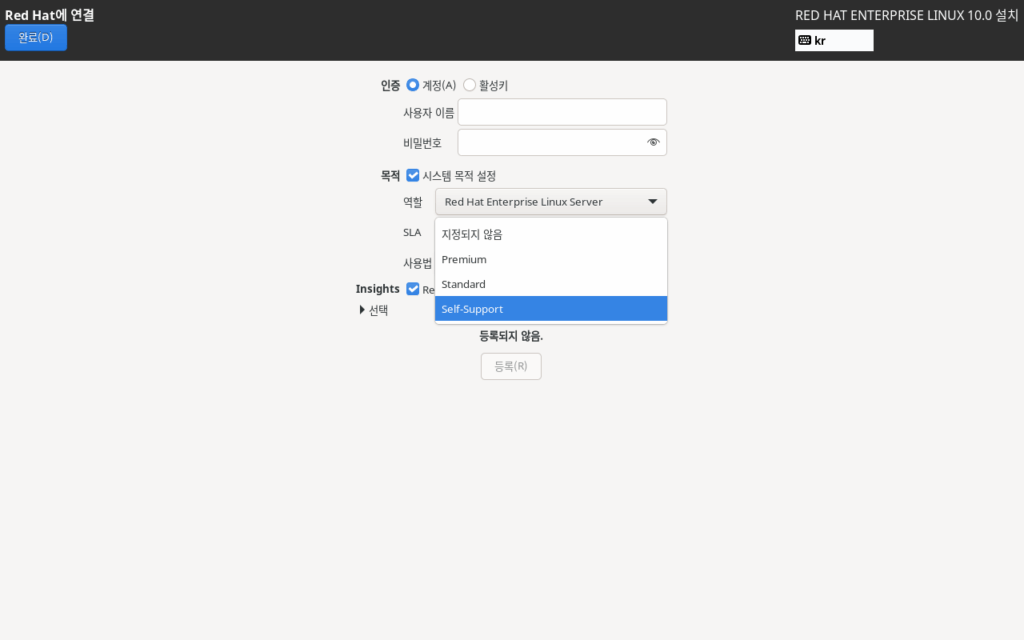
(6) “SLA”는 그림 처럼 3가지가 표시됩니다. 개발자 구독의 경우는 “Self-Support”을 선택합니다.
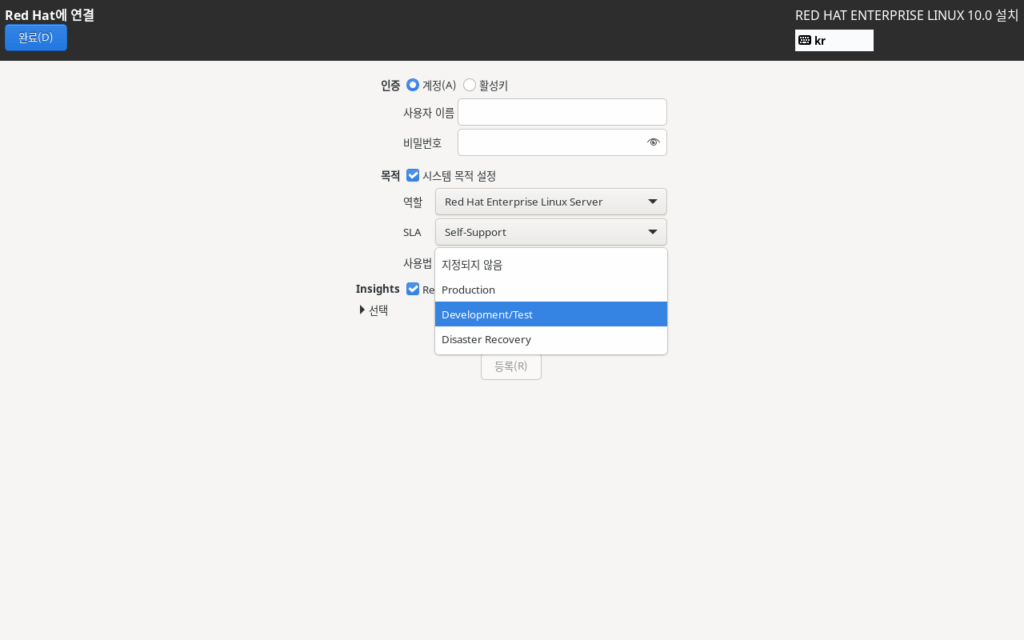
(7) “사용법”은 그림 처럼 3가지가 표시됩니다. 개발자 구독의 경우는 “Development/Test”를 선택합니다.
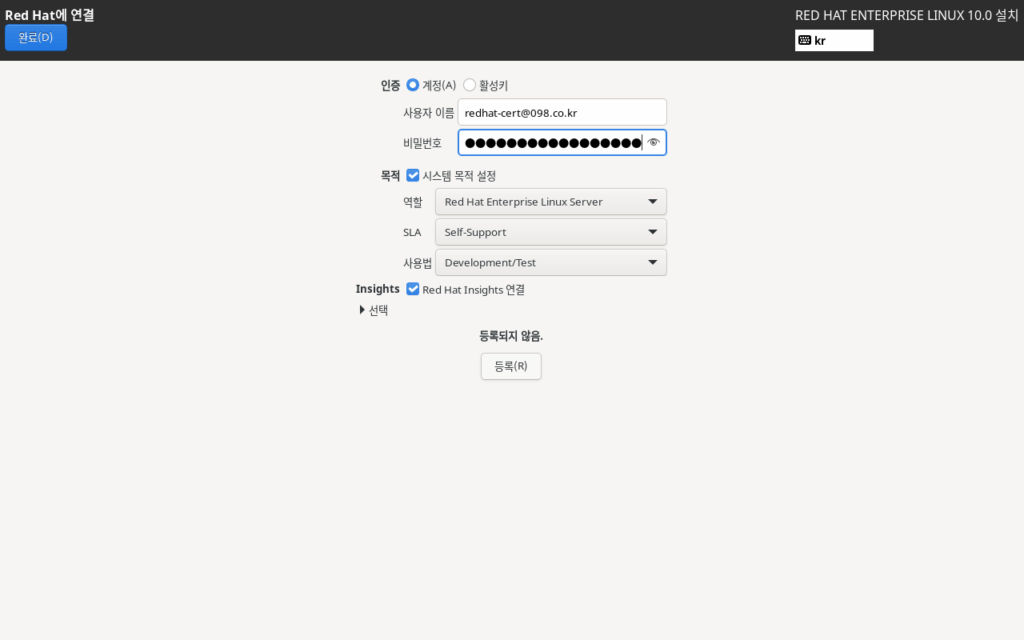
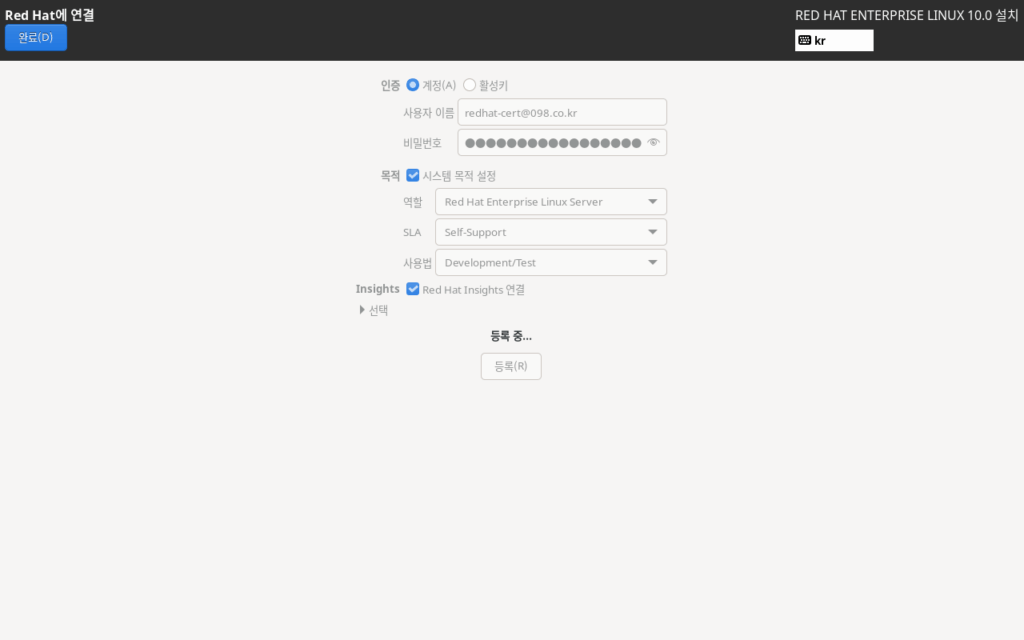
(8) 선택한 내용을 확인하고 “등록” 단추를 클릭합니다.
(9) 그림 처럼 “등록 중…”이 표시되고, 등록이 진행됩니다.
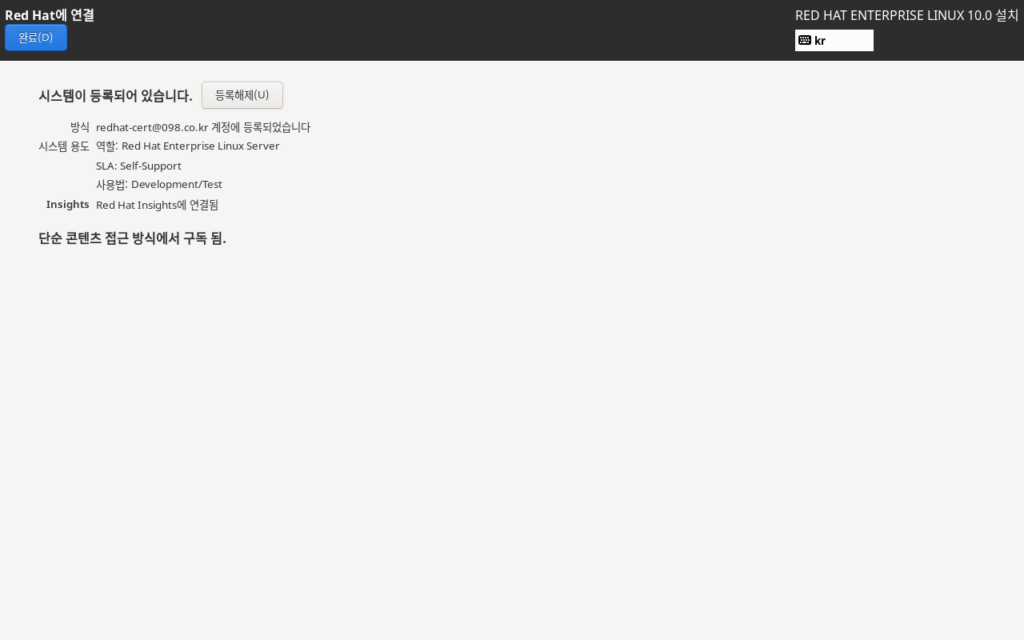
(10) 등록이 끝나면 그림과 같은 화면이 표시됩니다. “완료” 단추를 클릭해서 설치 요약화면으로 돌아가서 설치를 진행합니다.
Activation Keys 만드는 방법
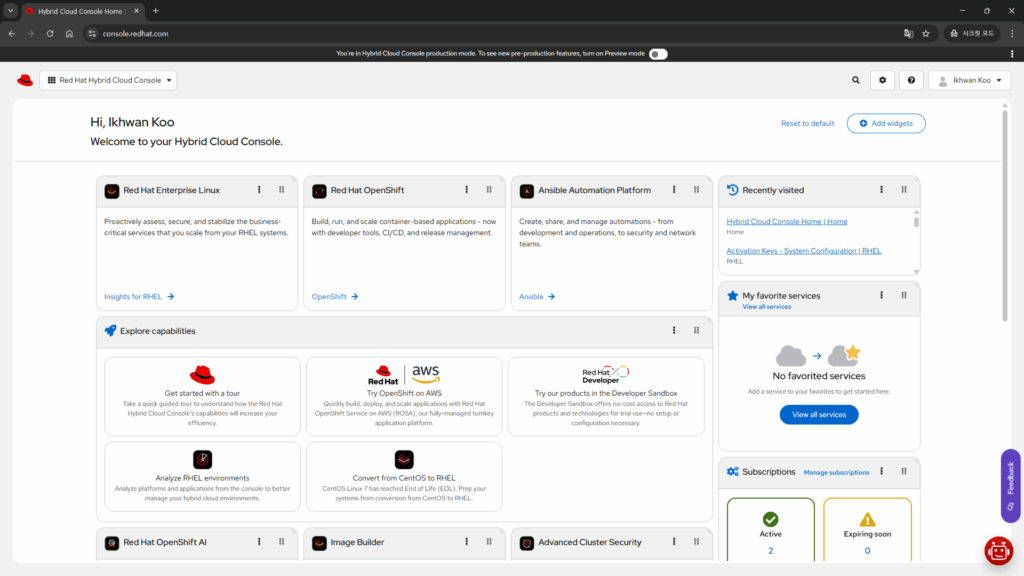
Red Hat ID를 갖고 있으면 Red Hat Hybrid Cloud Console에 접속할 수 있습니다. 이 콘솔에서 온-프레미스 또는 클라우드에서 사용하는 각종 서비스들을 통합해서 관리할 수 있습니다.
콘솔에서 Activation Key를 만드는 방법은 다음과 같습니다.
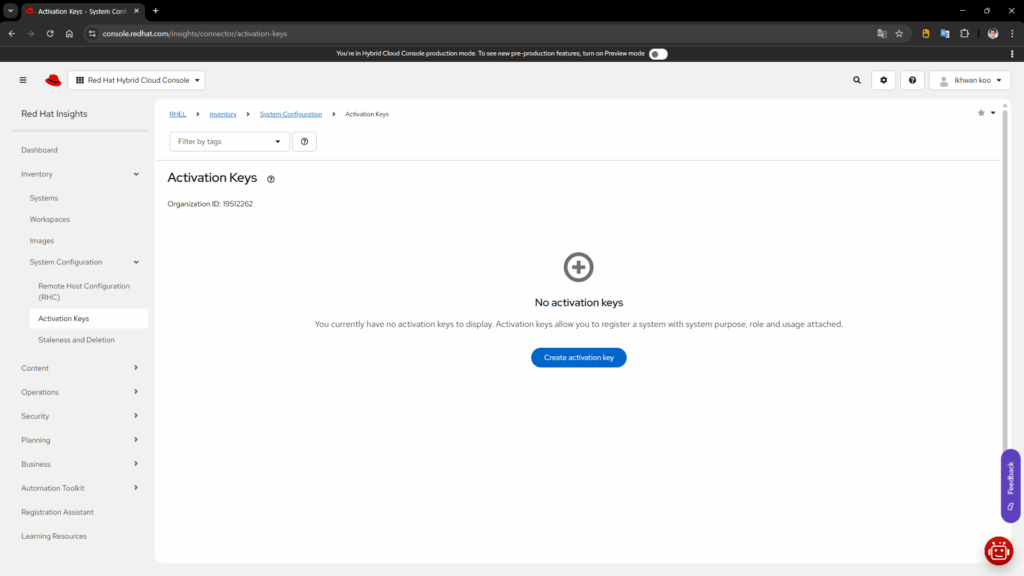
(1) Activation Keys 페이지에 접속해서 “Create activation key” 단추를 클릭합니다: https://console.redhat.com/insights/connector/activation-keys
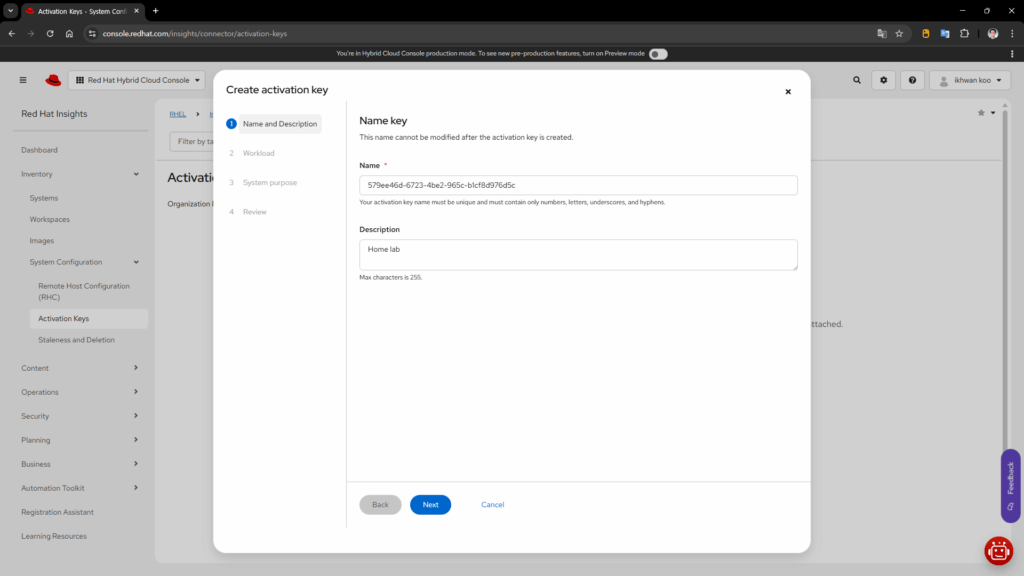
(2) Name key 대화상자가 표시됩니다. Name은 기본적으로 자동으로 만들어져서 표시됩니다. Description 등을 입력하고 “Next” 단추를 클릭합니다.
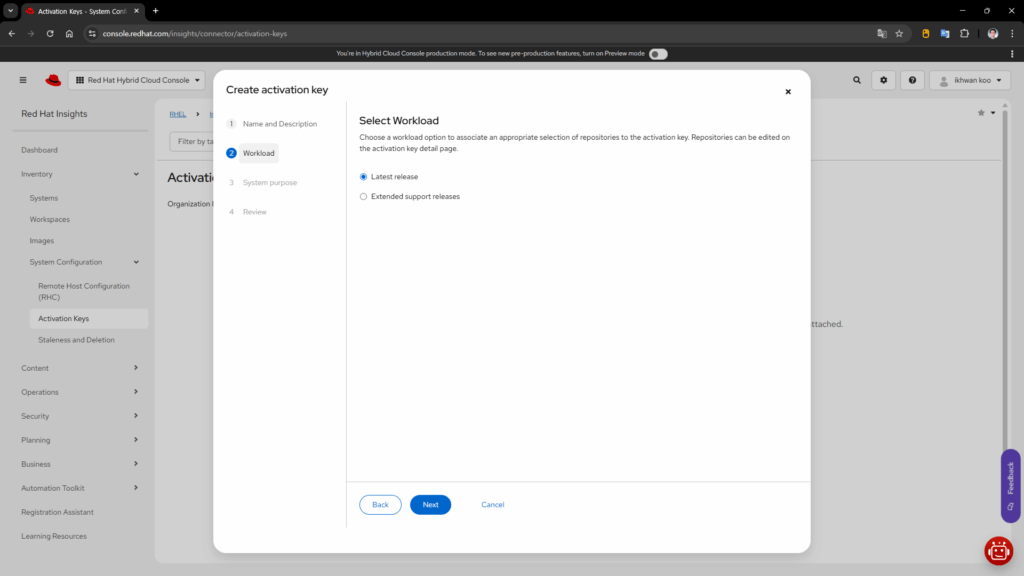
(3) Select Workload 페이지에서 이 키를 사용해서 등록할 경우 액세스할 저장소 유형을 선택합니다. 일반적으로는 Latest release가 사용됩니다. 선택하고 “Next” 단추를 클릭합니다.
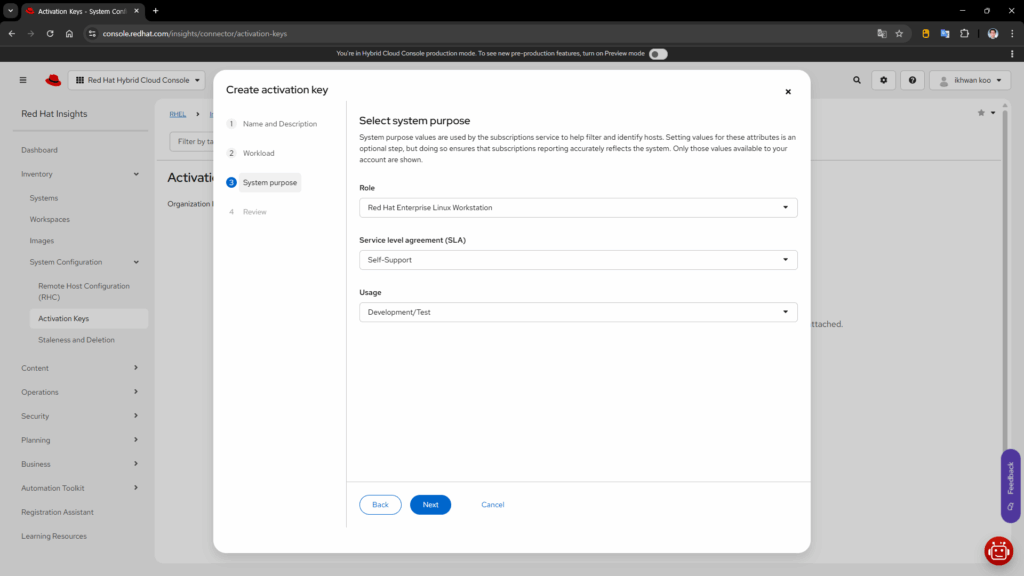
(4) Select system purpose 페이지에서 Role, Service level agreement (SLA), Usage를 선택합니다. 아나콘다를 이용해서 설치할 때와는 달리 Not defined 또는 1가지 항목만 선택할 수 있습니다. 선택하고 “Next” 단추를 클릭합니다.
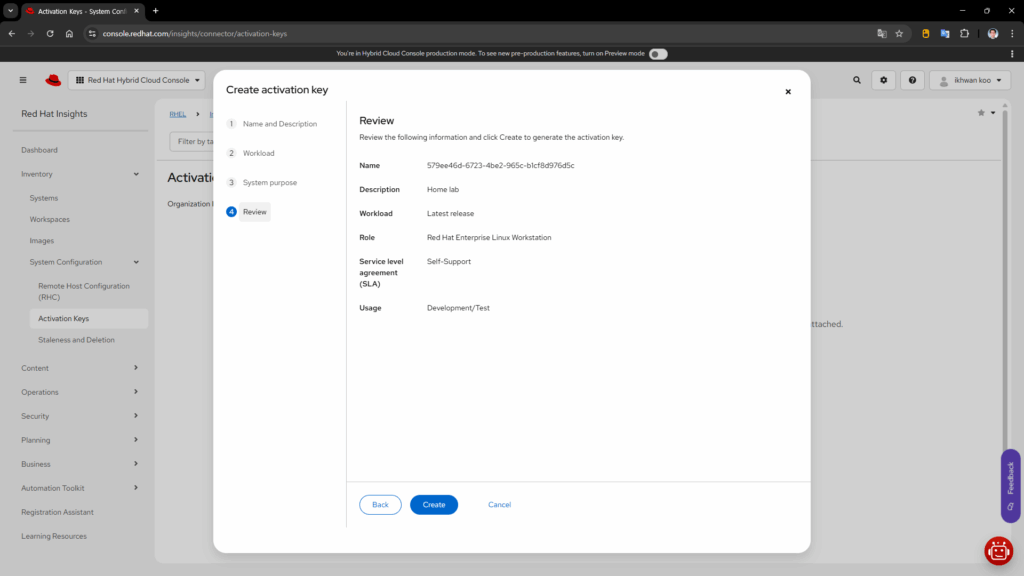
(5) Review 화면에서 선택한 내용을 확인하고 “Create” 단추를 클릭합니다.
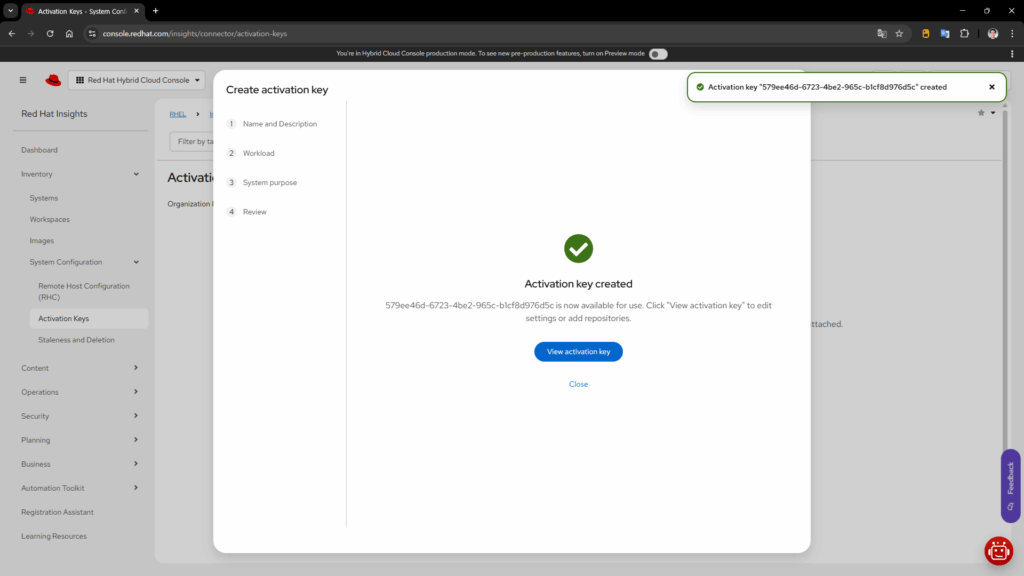
(6) 키가 만들어집니다. View activation key 단추를 클릭합니다.
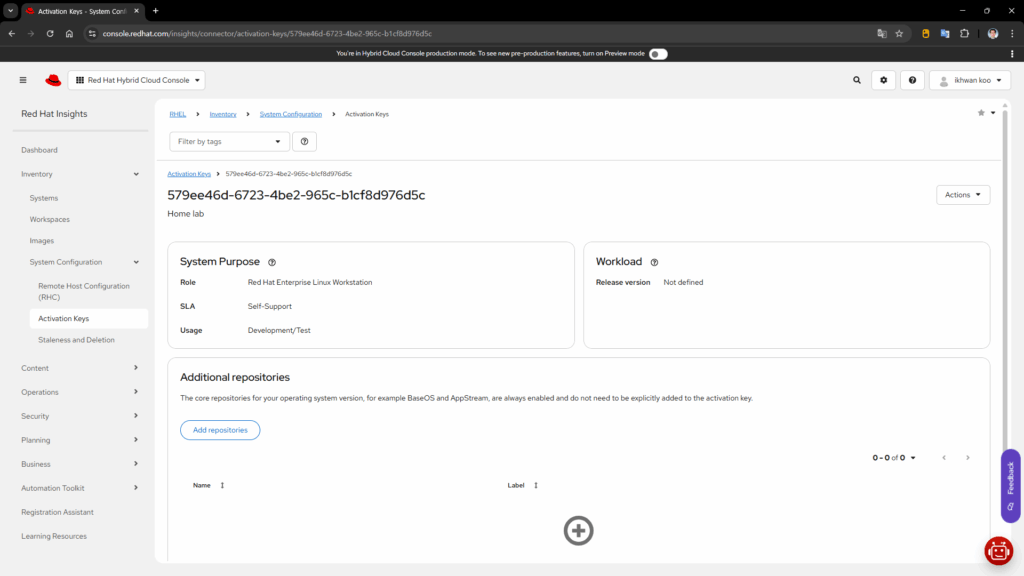
(7) 그림과 같은 Activation Key 정보를 볼 수 있습니다.
(8) RHEL > Inventory > System Configuration > Activation Keys 메뉴에서 기존 키를 관리하거나, 새로 만들 수 있습니다. 여기서 Activation Key 방식으로 등록할 때 함께 사용하는 Organization ID도 확인할 수 있습니다.
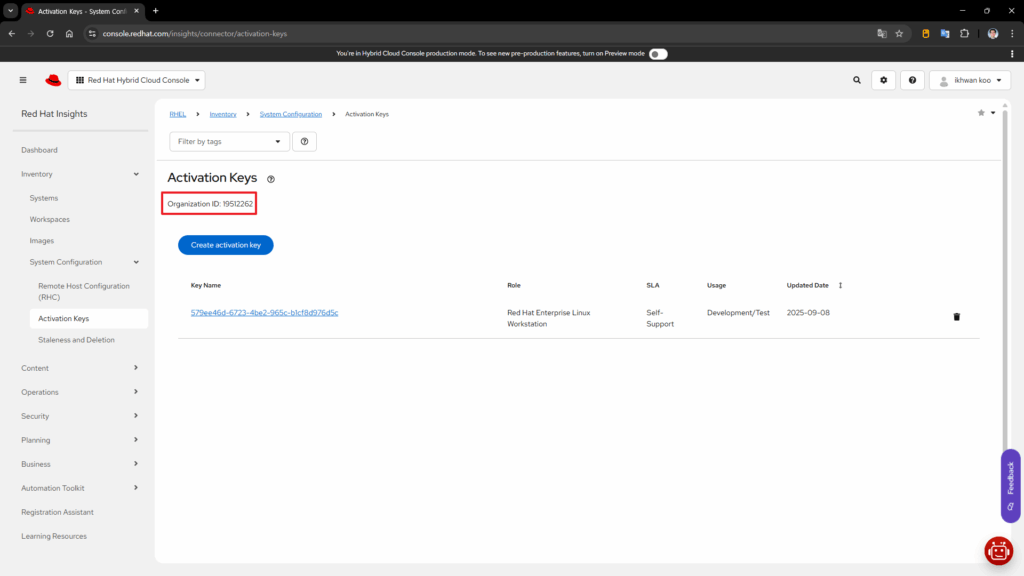
한번 생성된 키의 Name은 변경할 수 없고, 다른 항목들은 변경 가능합니다.
rhc 사용법
RHEL 시스템에서 구독에 연결, 해지하는 등의 작업은 rhc 를 이용합니다. RHEL 8.7 이전에는 subscription-manager 를 사용합니다. RHEL 10.0에도 여전히 subscription-manager가 있고 사용할 수 있습니다. 그러나 권장되는 도구는 rhc 입니다.
RHEL 10을 설치하고 접속하면 대략 다음과 같은 내용이 표시됩니다.
Register this system with Red Hat Insights: rhc connect

Example:
# rhc connect --activation-key <key> --organization <org>

The rhc client and Red Hat Insights will enable analytics and additional
management capabilities on your system.
View your connected systems at https://console.redhat.com/insights

You can learn more about how to register your system
using rhc at https://red.ht/registration
Last login: Mon Sep  8 14:02:46 2025
[ikhwan@rhel-10 ~]$
뭐 대략 rhc connect 이용해서 등록하면 rhc 클라이언트와 Red Hat Insights를 사용해서 시스템 분석과 추가 관리 기능을 제공한다 뭐 그런 내용입니다.
등록 방법은 이 내용에 나온 것 처럼 rhc connect 명령과 위에서 만든 Activation key를 이용하면 됩니다.
[ikhwan@rhel-10 ~]$ sudo rhc connect --activation-key xxxxxxxx-xxxx-xxxx-xxxx-xxxxxxxxxxxx --organization 12345678
[sudo] ikhwan 암호:
Connecting rhel-10 to Red Hat.
This might take a few seconds.

Features preferences: [✓]content, [✓]analytics, [✓]remote-management

 [✓] Connected to Red Hat Subscription Management
  [✓] Content ... Red Hat repository file generated
  [✓] Analytics ... Connected to Red Hat Insights
  [✓] Remote Management ... Activated the yggdrasil service

Successfully connected to Red Hat!

Manage your connected systems: https://red.ht/connector
[ikhwan@rhel-10 ~]$
등록된 다음 레포지토리를 확인해보면 다음과 같습니다.
[ikhwan@rhel-10 ~]$ sudo dnf repolist
서브스크립션 관리 저장소를 최신화하기.
저장소 ID                                                저장소 이름
rhel-10-for-x86_64-appstream-rpms                        Red Hat Enterprise Linux 10 for x86_64 - AppStream (RPMs)
rhel-10-for-x86_64-baseos-rpms                           Red Hat Enterprise Linux 10 for x86_64 - BaseOS (RPMs)
[ikhwan@rhel-10 ~]$
dnf repolist --all 명령을 이용하면 이 외에도 많은 레포지토리 정보가 구성되어 있는(비활성화 상태) 것을 확인할 수 있습니다.
rhc status 명령을 이용하면 현재 어떤 서비스들이 연결되어 있는지 확인할 수 있습니다.
[ikhwan@rhel-10 ~]$ sudo rhc status
Connection status for rhel-10:

✓ Connected to Red Hat Subscription Management
✓ Connected to Red Hat Insights
✓ The yggdrasil service is active

Manage your connected systems: https://red.ht/connector
[ikhwan@rhel-10 ~]$
rhc disconnect 명령을 이용하면 해당 시스템의 구동을 끊을 수 있습니다.
[ikhwan@rhel-10 ~]$ sudo rhc disconnect
Disconnecting rhel-10 from Red Hat.
This might take a few seconds.

 [✓] Deactivated the yggdrasil service
 [✓] Disconnected from Red Hat Insights
 [✓] Disconnected from Red Hat Subscription Management

Manage your connected systems: https://red.ht/connector
[ikhwan@rhel-10 ~]$
Red Hat Developer 구독은 댓수가 제한적이라, 사용하지 않는 시스템들을 이 명령어로 끊어주는 것이 좋아 보입니다.
현재 등록된 시스템 목록은 Red Hat Insights의 Inventory 페이지(https://console.redhat.com/insights/inventory)에서 확인할 수 있습니다.
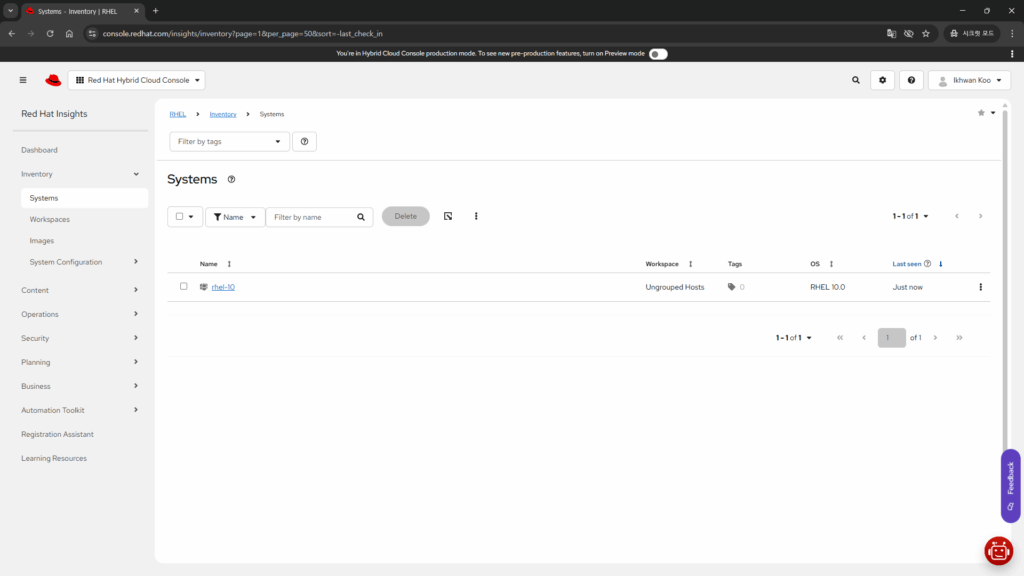
Red Hat Insights(https://console.redhat.com/insights/dashboard)에서는 시스템 구성과 관련된 조언, 보안과 관련된 여러 기능을 제공합니다.